Welcome to the Loan App Docs
This site aims to explain all the relevant Loan App functionalities in clear and simple language. If you have trouble understanding any part or have questions, please contact michael@bunny.software
The AppSheet Dashboard
Google AppSheet offers a simple user interface which is especially useful on cellphones. You can quickly look up new applicants, open their upload folder and change their status.
Installation of the AppSheet Dashboard
The easiest way to install the AppSheet app is through this link:
https://www.appsheet.com/newshortcut/641fe7d2-5132-48ae-ba4f-5c8125903625
After installing, you just need to log into your Google Workspace account in order to access the applicants and clients.
Using the AppSheet Dashboard
The Main View
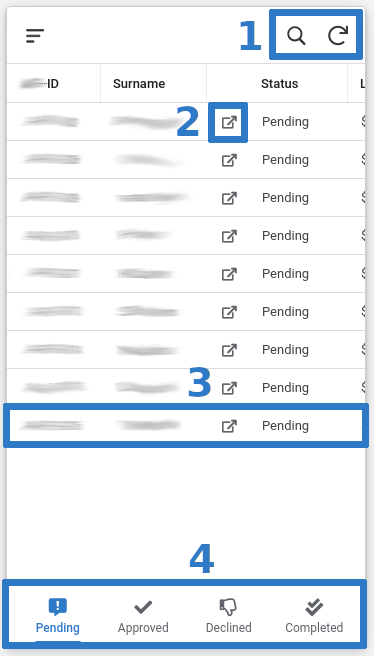
The main view comes with four tabs according to the clients' loan status. There are four functions to look out for:
-
Search and Refresh buttons
-
This box links to the client's folder with his uploads and opens it in your browser
-
A client entry, tap on it to open a details view and change the loan status
-
The tabs according to loan statuses
The Client Detail View
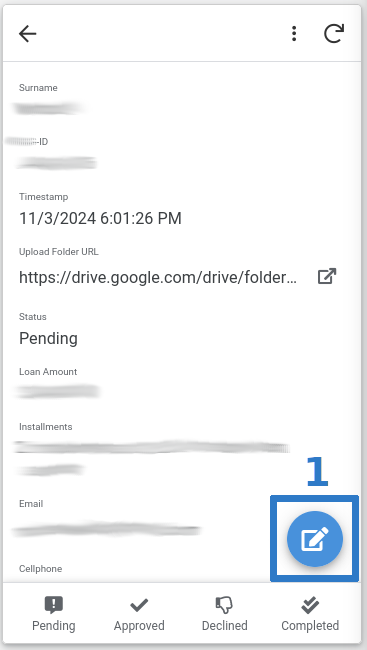
Here you can see the client details and edit their loan status:
- The edit button
The Client Detail Edit View
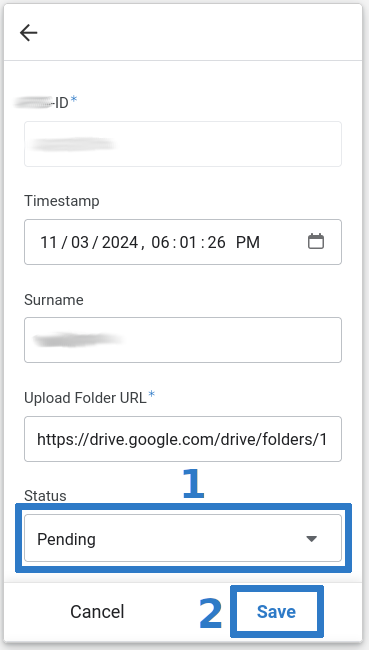
Here you can change some client details, most importantly the loan status:
-
Tap the status to open a menu with status choices
-
Tap save to save your changes